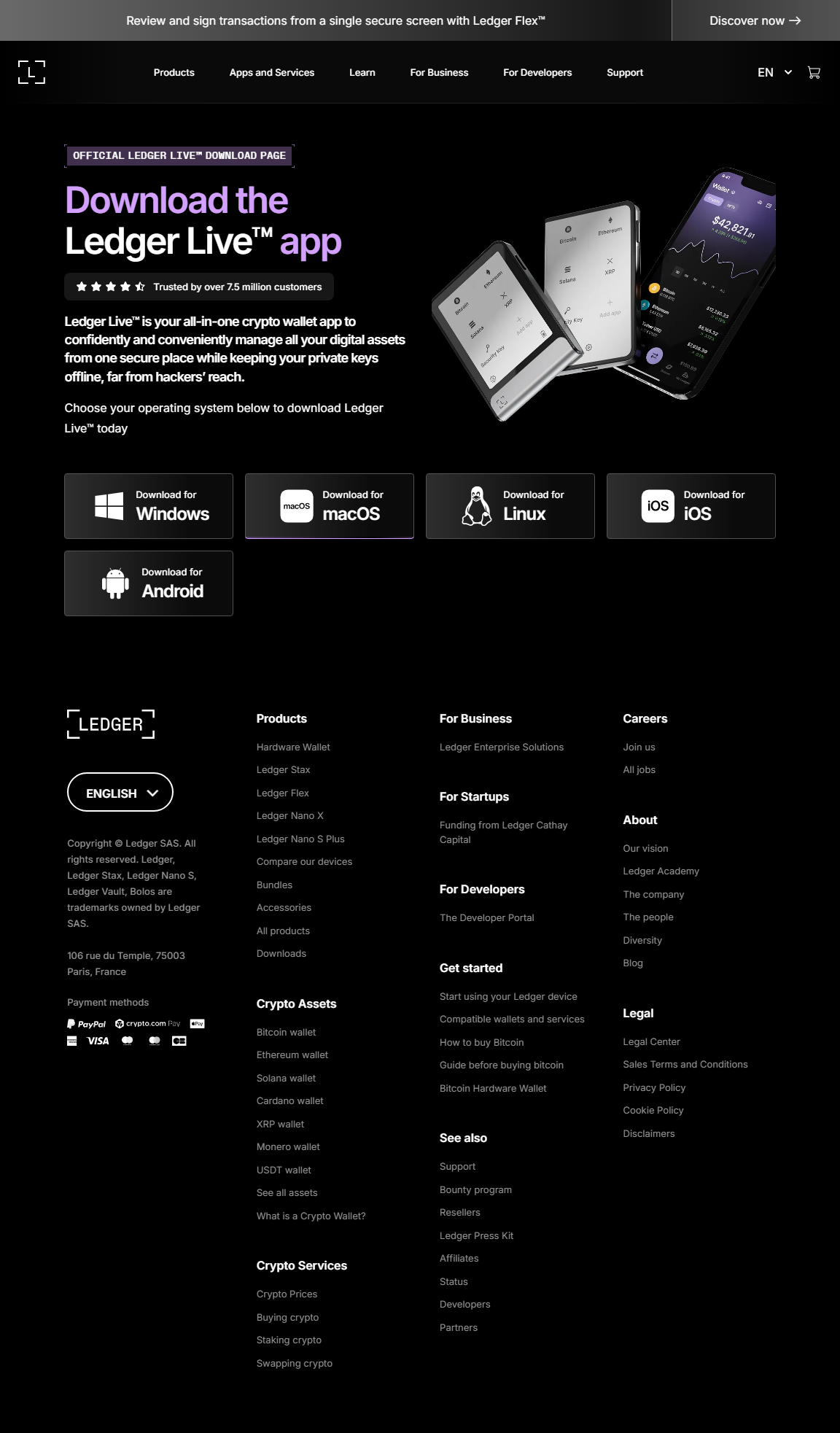
Ledger Live Login — Complete Beginner’s Guide (Secure, Fast, Reliable)
Step-by-step explanation of how to login to Ledger Live (Desktop & App), troubleshoot common issues, and secure your ledger wallet access like a pro.
Keywords: Ledger Live Download, Ledger Live App, Ledger Live Desktop, ledger live wallet
LOGIN
Secure access to your crypto
Imagine your ledger wallet as a fortified safe — Ledger Live is the combination dial and user interface. Logging into Ledger Live doesn't move your coins; it simply unlocks the dashboard so you can view balances, send transactions, and manage apps on your hardware device. This guide walks you from simple explanations to advanced security tips — useful whether you're using Ledger Live Desktop or the Ledger Live App on mobile.
Why logging in correctly matters
A successful ledger live login connects your local Ledger Live app to your physical Ledger device (Nano S / Nano X) while preserving cold storage of your private keys. Mistakes at login can result in false error messages, exposure to phishing screens, or misconfiguration of network settings. We'll make it straightforward and safe.
Quick facts
• Ledger Live never stores your seed.
• Login is local — use Ledger Live Download for Desktop or Ledger Live App for mobile.
• Use firmware updates for device compatibility.
• Login is local — use Ledger Live Download for Desktop or Ledger Live App for mobile.
• Use firmware updates for device compatibility.
Step-by-step: How to login to Ledger Live (Desktop & Mobile)
Follow these steps exactly — each step is short and action-oriented. Treat any unexpected prompt as a red flag.
1
Download the official app
Use the Ledger Live Download page or install the Ledger Live App from your official app store. Avoid third-party downloads or links in emails.
2
Open Ledger Live and choose device
Select 'Get started' and choose your hardware model (e.g., Nano S Plus, Nano X). If you already set up your device, choose 'Already have a device'.
3
Connect and unlock your Ledger device
Use the supplied USB or Bluetooth (Nano X). Enter your PIN on the device — never type your PIN into your computer or phone.
4
Allow Ledger Live to communicate
You may need to confirm a 'Allow Ledger Manager' on the device — accept only when you initiated the connection.
5
Authenticate and view portfolio
Once connected, Ledger Live will populate accounts. You’re now logged into your ledger live wallet interface — balances shown are read-only until you confirm a transaction on your hardware device.
“Your seed phrase is the master key — Ledger Live is the lock. Never share the key, and treat the lock's prompts as the gatekeeper.”
Troubleshooting: Common ledger live login problems
Device not recognized: Try a different USB cable or port. If using Bluetooth, toggle Bluetooth and re-pair the device. Make sure the device firmware is up to date.
Wrong PIN / Locked device: Multiple wrong attempts will temporarily lock access. Wait and try again — do NOT enter your recovery phrase into the app to "unlock" anything.
App shows zero balance: Ledger Live reads the blockchain; balances are derived from your public addresses. Ensure you added the correct accounts (e.g., Ethereum, Bitcoin) in the app.
Stuck on "Allow Ledger Manager": Confirm the prompt on the device. If it persists, close Ledger Live, disconnect and reconnect, and re-open the app.
Under the hood — what's happening when you log in
When you log into Ledger Live and connect your hardware wallet, a secure channel is established between the app and the Ledger device. Transactions are composed in Ledger Live but must be approved and signed inside the hardware wallet using your private key (which never leaves the device). This is the essence of cold storage — private keys remain offline while Ledger Live acts as a manager and display.
Related terms you should know: seed phrase, private key, firmware, hardware wallet, and cold storage. These form the vocabulary for secure crypto custody.
Ledger Live Desktop vs Ledger Live App (Quick comparison)
Feature
Ledger Live Desktop
Ledger Live App (Mobile)
Connectivity
USB / Bluetooth (some devices)
Bluetooth (commonly) — convenient on mobile
Usability
Detailed portfolio view, developer options
Streamlined, on-the-go management
Security tradeoffs
Direct desktop access; avoid unknown USB hubs
Bluetooth pairing must be secured; keep phone updated
Best for
Power users, frequent desktop traders
Casual users, quick sends, portfolio checks
Advanced tips to keep login safe
1. Verify you’re using official software: Always use the official Ledger Live Download source or the official Ledger Live App in your platform’s app store. Don’t follow links sent by strangers.
2. Keep firmware & app updated: Ledger Live Desktop and the device firmware must be compatible. If an update is available, apply it using the device prompts only while connected to Ledger Live.
3. Manage accounts selectively: Add only the accounts you need. The device lists apps per blockchain — installing too many apps is unnecessary for most users.
4. Beware of phishing & copycats: Ledger Live will never ask for your full recovery phrase. If any page or popup requests it, close everything and treat it as malicious.
5. Use a hardware PIN and secure backup: Your PIN protects the device. Your recovery seed (24 words on many Ledger devices) is your ultimate backup — store it offline, in multiple secure places, never digitally.
Frequently asked questions (FAQ)
Q: Can I login to Ledger Live without my physical device?
A: No — Ledger Live reads data from the blockchain but requires your physical Ledger device to authenticate and sign transactions. Without the device, you can view public addresses but cannot perform secure actions.
Q: I lost access to Ledger Live after an OS update. What now?
A: Reinstall Ledger Live from the official Ledger Live Download page. After reinstalling, reconnect your device and re-add accounts — your funds remain safe on the blockchain tied to your seed phrase.
Q: Does Ledger Live store my private keys?
A: No. Ledger Live never stores private keys or recovery phrases. The keys are held on your hardware wallet device (cold storage). Ledger Live only interacts with the device and the blockchain nodes.
A short story — why one login choice mattered
A friend once rushed to click an email link promising a "Ledger Live update." Within minutes they had typed a seed phrase into a fake page believing it was the app. The funds were gone. Contrast that with Sarah, who always opens the Ledger Live Desktop she downloaded herself, connects the Nano X, and confirms every action on-device. The login process seems small — but it’s the guardrail between secure custody and disaster.
Final checklist before you login
• Use official Ledger Live Download or official Ledger Live App.
• Keep firmware up to date.
• Never share your seed phrase.
• Confirm transactions on your device.
• Use secure backups and physical storage for your recovery phrase.
• Keep firmware up to date.
• Never share your seed phrase.
• Confirm transactions on your device.
• Use secure backups and physical storage for your recovery phrase.
Ready to login safely
Conclusion — login confidently, guard your keys
Mastering the ledger live login flow is a small habit with big rewards. By downloading Ledger Live from trusted sources, keeping your device firmware current, and confirming every action on your physical ledger wallet, you maintain the separation between online convenience and offline security. Whether you use Ledger Live Desktop or the Ledger Live App, treat your device like the vault it is — the app is simply the window. Now go open Ledger Live with confidence and double-check that PIN and seed storage — your crypto future depends on these small, steady choices.
Related terms covered in this guide
seed phrase · private key · hardware wallet · cold storage · firmware · crypto exchange